Just an update – I will be posting the Custom Intiation Form example soon (hopefully this weekend).
Screenshots take forever! (or I am just not very good at it)
Just an update – I will be posting the Custom Intiation Form example soon (hopefully this weekend).
Screenshots take forever! (or I am just not very good at it)
In this post, I will walk through the creation and deployment of a very basic Association form for a MOSS workflow. Note that I am not trying to be realistic and create an association form that you might use in a real workflow – I am simply trying to show the mechanics, with as much noise as possible stripped away.
First, I would like to explain what role the Association form plays in a MOSS workflow. When you design a workflow in Visual Studio, you are creating a workflow template, which gets deployed as a feature to SharePoint. You cannot actually do anything with your workflow template until you link it to a SharePoint List, Library, or Content Type. This link is called an Association. When you create the Association through the MOSS user interface, your custom Association form is displayed after the built in form. This allows you to select default values for various parameters for your workflow.
Ok, that’s the best I can do explaining that. If you want to read Microsoft’s description, have a look at http://msdn.microsoft.com/en-us/library/ms481192.aspx.
So, how do you actually create and use a custom Association form?
Before we start, have a look at my previous post describing my base environment for creating these examples.
1) Create a new site
I used a new web application, and a new site collection created using the Team Site template. I named my site AssociationFormDemo;
2) Create Form Library
On this new site, create a Form Library (which I named Workflow Form Library);
3) Create Task List
Also create a new Task List. I called mine Workflow Tasks. At this point, your site home page should look something like the picture below.

4) Create Workflow Project
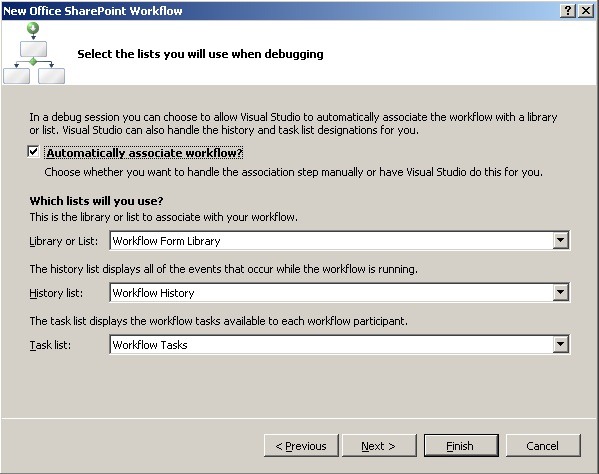
Launch Visual Studio 2008. Create a new project. Expand the C# project tree, select Workflow, and select the SharePoint 2007 Sequential Workflow. Name the project “MyWorkflow”. The create project dialog should look like the picture below.

5) Set the properties for the project as shown below


6) Finish Creating Workflow Project
Click finish. Normally, we would change the workflow name in the project, add some activities, some code, etc., but this is not necessary for this example. The project should look something like this.

7) Checkpoint
To make sure everything is ok up to this point, select Build | Build Solution, and then Build | Deploy Solution If both are successful, you can navigate (in IE) to your form library created in Step 2. Select Settings | Form Library Settings, which will display the Customize Form Library page.

Select Workflow settings. The display should be as shown below:

Click on MyWorkflow to display the default Association form, as shown below. Note that the buttons at the bottom are Ok and Cancel. Click Cancel to close the form.

8 ) Create Custom Association Form in InfoPath
Now we will create the InfoPath Association Form. Launch InfoPath and select Design a Form Template. Select the settings as shown below (Form Template, Blank, Enable browser-compatible features only).

9) Design the Custom Association Form – Create Data Source for Submission
In the InfoPath Designer, select Tools | Data Connections… and click the Add button. Create the new data connection as shown in the following pictures.


Click Finish and Close to get back to the main InfoPath window.
10) Create a Custom Field for the Form
In the Task Pane, under Design Tasks, click on Data Source. Right click on myFields, and select Add to add a new field to the schema. Create a new field as shown below, and click Ok.

11) Add the Custom Field to the Form
Drag and drop the My Setting field onto the design surface, to create label and text box for it. Also add a Button control, and change its label to “Submit”. Your form should look something like the picture below.

12) Add Logic to the Submit Button
Double click on your Submit button to display the Button Properties dialog. Click on the Rules… button, and click Add and then Add Action. Select options as shown below, and click Ok.
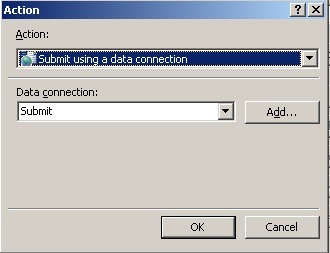
Click Add Action again, and set the options as shown below, and click Ok.

You should now have two actions, as shown below.

13) Set Form Security Level
Finally, we must set the form trust to Domain. Select Tools | Form Options…, and select Security and Trust. Unselect the checkbox Automatically determine security level (recommended), and click the Domain radio button, as shown below, and click Ok.

14) Save the Form Template
Save the form to disk (File | Save). You can save it anywhere you want, as long as it is not your Visual Studio project folder. I just save mine to a Forms folder in My Documents. Name the form MyAssociationForm.xsn for this example (in practice you can name it whatever makes sense).
15) Publish the Form Template
Now we want to publish the form. This did not entirely make sense to me, but when you select File | Publish…, on the first page of the publish dialog we will select To a Network Location even though we will actually publish it to our Visual Studio workflow project folder.

Click Next, and then browse to the location where you will publish the form. In this case, we want to publish to your workflow project folder, as shown.

Type a name for your form (I used MyAssociationForm.xsn), click Ok, and Next. On the next form, clear the text box and click Next (this is important, the form will not work if you do not clear that text box!)

When you click Next, a warning will pop up, as shown below. Click Ok to continue.

Click Publish and Close, and then exit InfoPath.
16) Retrieve Form ID to Use in Workflow Project
In Windows Explorer, navigate to your workflow project folder, right click on the InfoPath form you just published there, and select Design. When the form opens in design mode, select File | Properties… to display the properties dialog shown below.

Select the ID as shown, and copy it to the clipboard. Click Ok and exit InfoPath.
17) Modify Workflow Project to Reference Custom Association Form
Go back to Visual Studio 2008, and open you workflow project if it is not still open. Open the workflow.xml file. The default file looks like this:
<?xml version="1.0" encoding="utf-8" ?>

<!-- Customize the text in square brackets.
     Remove brackets when filling in, e.g.
     Name="[NAME]" ==> Name="MyWorkflow"
-->

<Elements xmlns="http://schemas.microsoft.com/sharepoint/">
   <Workflow Name="MyWorkflow"
             Description="My SharePoint Workflow"
             Id="0d94af3a-45e7-4035-b351-9a10fc41018d"
             CodeBesideClass="MyWorkflow.Workflow1"
             CodeBesideAssembly="MyWorkflow, Version=1.0.0.0, Culture=neutral, PublicKeyToken=96c40524715e44e9">
      <Categories/>
      <MetaData>
         <!-- Tags to specify InfoPath forms for the workflow; delete tags for forms that you do not have -->
         <!--
         <Association_FormURN>[URN FOR ASSOCIATION FORM]</Association_FormURN>
         <Instantiation_FormURN>[URN FOR INSTANTIATION FORM]</Instantiation_FormURN>
         <Task0_FormURN>[URN FOR TASK (type 0) FORM]</Task0_FormURN>
         <Task1_FormURN>[URN FOR TASK (type 1) FORM]</Task1_FormURN>
         -->
         <!-- Modification forms: create a unique guid for each modification form -->
         <!--
         <Modification_[UNIQUE GUID]_FormURN>[URN FOR MODIFICATION FORM]</Modification_[UNIQUE GUID]_FormURN>
         <Modification_[UNIQUE GUID]_Name>[NAME OF MODIFICATION TO BE DISPLAYED AS A LINK ON WORKFLOW STATUS PAGE</Modification_[UNIQUE GUID]_Name>
         -->
         <StatusPageUrl>_layouts/WrkStat.aspx</StatusPageUrl>
      </MetaData>
   </Workflow>
</Elements>
Paste the ID from your InfoPath form properties into the <Association_FormURN> element, and uncomment the element (be careful that the other commented out elements stay that way – or delete the ones you are not using as I did):
<Association_FormURN>urn:schemas-microsoft-com:office:infopath:MyAssociationForm:-myXSD-2009-03-18T03-04-06</Association_FormURN>
Of course, your actual URN will be different than mine.
Add the following new attribute to the <Workflow> element:
AssociationUrl="_layouts/CstWrkflIP.aspx">
Your workflow.xml file should now look something like this:
<?xml version="1.0" encoding="utf-8" ?>

<!-- Customize the text in square brackets.
     Remove brackets when filling in, e.g.
     Name="[NAME]" ==> Name="MyWorkflow"
-->

<Elements xmlns="http://schemas.microsoft.com/sharepoint/">
   <Workflow Name="MyWorkflow"
             Description="My SharePoint Workflow"
             Id="0d94af3a-45e7-4035-b351-9a10fc41018d"
             CodeBesideClass="MyWorkflow.Workflow1"
             CodeBesideAssembly="MyWorkflow, Version=1.0.0.0, Culture=neutral, PublicKeyToken=96c40524715e44e9"
             AssociationUrl="_layouts/CstWrkflIP.aspx">
      <Categories/>
      <MetaData>
         <!-- Tags to specify InfoPath forms for the workflow; delete tags for forms that you do not have -->
         <Association_FormURN>urn:schemas-microsoft-com:office:infopath:MyAssociationForm:-myXSD-2009-03-18T03-04-06</Association_FormURN>
         <StatusPageUrl>_layouts/WrkStat.aspx</StatusPageUrl>
      </MetaData>
   </Workflow>
</Elements>
Save the file and close it.
18) Make Sure the Custom Association Form will get Copied With the Workflow Feature
Next, open the feature.xml file. It will look something like
<?xml version="1.0" encoding="utf-8" ?>

<Feature  Id="15fdd97f-db32-44c1-96cc-cab49acecd36"
          Title="MyWorkflow feature"
          Description="My SharePoint Workflow Feature"
          Version="12.0.0.0"
          Scope="Site"
          ReceiverAssembly="Microsoft.Office.Workflow.Feature, Version=12.0.0.0, Culture=neutral, PublicKeyToken=71e9bce111e9429c"
          ReceiverClass="Microsoft.Office.Workflow.Feature.WorkflowFeatureReceiver"
          xmlns="http://schemas.microsoft.com/sharepoint/">
   <ElementManifests>
      <ElementManifest Location="workflow.xml" />
   </ElementManifests>
   <Properties>
      <Property Key="GloballyAvailable" Value="true" />

      <!-- Value for RegisterForms key indicates the path to the forms relative to feature file location -->
      <!-- if you don't have forms, use *.xsn -->
      <Property Key="RegisterForms" Value="*.xsn" />
   </Properties>
</Feature>
Find the <ElementManifests> tag, and under that, add a new <ElementFile> element inside it as shown:
<ElementManifests>
   <ElementManifest Location="workflow.xml" />
   <ElementFile Location="MyAssociationForm.xsn"/>
</ElementManifests>
Save the file and close it.
19) Rebuild your workflow solution, and deploy it.
20) Test it Out
Back in IE, navigate to your form library settings page, click Workflow Settings, and click on your workflow to launch the association page as you did in Step 7. You should see the built in Association form as shown below.

Note that where we previously had an Ok button, now there is a Next button. Clicking this button brings us to our custom Association form, as shown.

Enter some text, and click Submit. This will bring us back to the Workflow Settings page. Click on your workflow again, and click Next. Note that the text you entered was persisted.
Ok, in this example I have walked through the creation of a custom Association Form for a SharePoint workflow. I know I have gone into a lot of detail. Writing it, I felt like it was too much detail. I think this is a symptom of already knowing how to do it. I know that this much detail would have been useful when I was trying to figure this out the first time – and may be useful in 6 months when I have forgotten it all.
Next time I will show how to create a custom Instantiation form. Much of it is similar, so I may not go into as much detail on those parts. Then there will be new things to worry about, like how to get at the settings from the instantiation form inside you workflow code.
This is the first in what I intend will be a series of posts on various verytactical aspects of implementing workflow in MOSS 2007. What will be talking about is code, not the strategic, big picture things like planning, requirements, usability, governance, etc. I will talk about those in other posts, but not this series.
So, why write about this at all? I mean, there should be lots of content out there in blog posts, MS documentation, tutorials, etc., right? Well there is content out there, but I found I had problems figuring things out, for a few reasons:
So, to start off, I am going to describe my base environment, which will serve as the starting point for most of my examples. I like to always start from a known baseline for these kind of examples. I have a base environment, and if I am using Microsoft Virtual PC, I make a copy of it to work through a given example. If I am using VMWare, I use snapshots.
My environment consists of the following (all fully patched):
In this environment, I have created a simple Team Site. Within this, I will add lists and libraries as required for my different examples.
In my next post, I will walk through creating a very simple workflow with a custom Association form developed in InfoPath (I will do a custom ASPX Association form later if I get time.)
Here are some things I have been reading lately…
Posts:
Integrating External Document Repositories with SharePoint Server 2007
The SharePoint Implementation Market needs to grow up! (I will talk about this more in another post)
Books:
Expert WSS 3.0 and MOSS 2007 Programming
Professional Microsoft SharePoint 2007 Workflow Programming
Professional Office Business Application Development
I am now writing a column over on Legal IT Professionals. My first installment went up this morning.
Here is a pretty good posting on the the pros and cons of using custom Site Definitions in WSS3/MOSS 2007.
I had always thought that Site Definitions were the correct way to deploy site level customizations (as opposed to using Site Templates). I began to question that, however, when I heard (from a Microsoft employee working with SharePoint, no less) that custom Site Definitions were being phased out in the next version (Office 14, or whatever). I have not been able to find any confirmation of this, however.
This SharePoint in Web 2.0 Fire Starter- Live Meeting looks interesting.
I also find the following statement on the page interesting:
Did you know that SharePoint is the fastest growing Server product in Microsoft’s history? It’s not only an enterprise darling but also an IT pro dream in terms of maintenance.
SharePoint technologies seem to have a lot of momentum going.
Cool – and finally 🙂
Download details: Windows SharePoint Services 3.0 Tools: Visual Studio 2008 Extensions, Version 1.2
So, the time has come to re-focus my blog a little around what I am currently working on. In the last year, I have gone through a fairly significant transition in my career. After close to a decade in a product-oriented startup, I have moved into a consulting role at T4G. This is a big change for me, at least it feels like it – the mental shift from focusing on products, product features, and product life-cycles to focusing on client engagements and project-oriented work. My mind tells me that in many ways the two are not so different – they just feel very different.
The main focus of my work (at least initially) is on portal technologies, specifically SharePoint. In addition to the engineering and mechanics of implementing SharePoint solutions, I am focused on a number of other related topics:
I will also be spending a significant amount of time establishing a Moncton office for T4G. By the way, if anyone knows any SharePoint resources (or good .NET or ASP.NET resources in the area, send them my way 🙂 ).
While my new role is as a consultant in an consulting company, I do not plan to abandon my roots in software development, software development processes, and programming. I also maintain a strong interest in innovation processes. Finally, there are a number of technology areas I am continuing to investigate, including Tablet PC applications, Silverlight, Office Business Applications, Social Networking, etc.
I am also hoping to have more time to blog a little more regularly 🙂


 FredSpace
You must be logged in to post a comment.