HP EliteBook 2740p Review

As you may have noticed if you follow my ramblings, I am a big Tablet PC fan. Recently, my favourite computer died (well, its batteries died). While Motion Computing took get care of me and helped me get some new batteries, this pointed out that I really need to start looking for a replacement.

Enter the HP EliteBook 2740p. This is the newest in HP’s ongoing series of convertible Tablet PCs, and features an updated processor, support for more RAM, and support for both stylus/handwriting input and multi-touch. I recently (about a week ago) received a new 2740p to use as my main work computer, and to evaluate for my employer. So, lets talk about this machine…

Configuration

I got pretty much the base configuration:

  • Intel® Core™ i5-540M Processor (2.53 GHz, 3 MB L3 Cache, 1066 MHz FSB)
  • 4 GB 1333 MHz DDR3 SDRAM (2D)
  • 250 GB 5400 rpm 1.8-inch hard drive
  • 12.1-inch diagonal LED-backlit WXGA UWVA with Digitizer & Touch (1280 x 800)
  • Intel Centrino® Advanced-N 6200
  • Bluetooth
  • TPM+FS
  • 2MP Webcam
  • HP 6-Cell 44 Wh Li-Ion Battery
  • Windows® 7 Professional 64

First Impressions

My first impression of the laptop when I unboxed it was that it felt very solid. Not heavy, but with a sturdy feeling to it. The case is aesthetically pleasing, and looks like it should be able to stand up to wear and tear. Placement of ports, switches and buttons seems logical, and nothing seemed overtly "cheap” About the only thing I was not impressed without of the box was the stylus – it is quite small for doing a lot of writing.

One good thing I note is that there is not a lot of heat coming of the machine. I was a little worried about this, as I have used HP’s TouchSmart consumer convertibles in the past, and they run really hot. The 2740p seems to stay nice and cool, however.

Performance seems pretty good, but I have not really done anything heavy on it yet.

Battery Life

I had seen numbers for the battery life of the 2740p in 5 hour range. I have not so far seen anything close to that – I see 3 hours, maybe 3 and a half at a stretch. Not bad, but not 5 hours. Also, the 3-3.5 hours is in power-saver mode, wireless off, etc. in “normal” working mode, I see something around 2-2.5 hours.

I suspect that I will definitely be buying the secondary battery for the 2740p if I want to use it on the road.

Display

I really like the display. It is nice and bright when I want it to be, and also looks good when I turn the brightness down. I like the fact that it is a matte finish, especially for handwriting and for reading documents it is much easier on the eyes than a glossy screen.

Ink Input

Ink input seems pretty good. I use Ink a lot – mostly in OneNote and in MindJet MindManager. Initially, I had trouble in OneNote as the accuracy of the stylus seemed really bad. Once I set the tablet settings properly (left-handed) and calibrated the digitizer, however, the handwriting in OneNote worked well.

Using the stylus to navigate is not without issues, however. Even after setting the tablet for left-handedness as well as calibrating the digitizer, I find there is significant parallax in the positioning of the cursor relative to the stylus tip. This is especially true near the edges of the display. It is better than on the Acer tablet MS gave out at PDC09, but far worse than it is on, say, my Motion Computing LE1600.

I was also disappointed in the coexistence of ink and touch on the 2740p. I still find that when I am  trying to write, the computer is recognizing touch events and confusing the process. There is a way around this – you can configure the machine to not automatically switch from ink to touch and back, but to rely on a double-touch gesture to switch modes. A little clunky, but at least it works.

Multi-touch

Multi-touch is, in a word, disappointing.  As I stated above, it does not coexist very well with stylus input. Once you are in “touch” mode, basic operations seem to work ok (scrolling, gestures for things like “back” or “forward”, etc.), but there seems to be a significant lag in touch response. I have not really had much success with multi-touch interactions at all – for example using a pinch type gesture to zoom in or out in IE or Word. The latency involved makes it not useful.

Quirks

There are a number of quirks (other than the ink/touch coexistence I mentioned above) that I have yet to resolve on the 2740p:

  • I cannot figure out how to make it use the fingerprint scanner for Windows logon. It is using it for BIOS-level authentication, and I can make it work for logons once I am inside Windows, but not for the actual Windows logon.
  • I cannot make the screen rotate automatically when I rotate the computer in tablet mode. It switches when I go from laptop to tablet mode or back. But when in table mode, when I rotate the machine, the display does not rotate.
  • I have had a lot of difficulties with BlueTooth. I have a BlueTooth mouse that pairs quite nicely with all the other computers I use, but the 2740p does not even see it (BlueTooth is working however, as I have successfully used it to connect to my phone).
  • Power cord: ok, this is a bit picky, but it has also been a problem on every tablet I have every used. The power cords are not designed to work well in tablet mode, they stick out way to far, and they put unnecessary stress on the connector. Seriously, is this the best they can design?

Summary

Overall, it is a nice laptop. Performance is good, battery life is good (and there is the option to add more), and the machine seems very solid and well made. I am still disappointed in both the handwriting and multi-touch capabilities, but maybe I will get used to them (though I should not have to get used to them, they should wow me out of the box!)

User Interface Things I Hate #1543

Whenever I send a text message on my cell phone, it pops up a message (and plays a sound) telling me that the message was successfully sent – forcing me to dismiss the message if I want to do anything else.

Don’t tell em the message was sent – I assume it was sent, becuase it is sent 99.99999% of the time. Only tell me on the rare occassion it isn’t sent (which has never actually happened to me), because that is the only time I have to do anything. Think of all the annoyance that would save.

CRTC and Bell – working together to move us back to the Internet Dark Ages

CBC News – Technology & Science – CRTC approves usage-based internet billing

Once again, our courageous, politically appointed representatives at the CRTC collaborate with Bell to move Canada back into the Internet Dark Ages. Isn’t this going to do wonders for our high tech industry (except Bell, of course).  We already have this kind of model for mobile internet, and it is what is holding back mobile internet adoption in this country.

I tell you what – any party that runs in the next election with an iron-clad commitment to scrap the CRTC on its first day in power, and fire everyone that works there, gets my vote.

So the iPad comes to Canada – whither 3G?

So I see that they have announced iPad availability in Canada for May 28, with pre-orders starting May 10.

I am of two minds about the iPad. On the one hand, I think it is really a consumer-oriented toy, missing a great deal of functionality (for example the ability to take notes with a stylus, etc.). On the other hand, as a glorified eBook reader, with “just enough” other functionality to make it worthwhile, it is a pretty neat gadget, and I do like my gadgets!

The biggest question for me, though, is 3G access. Will Apple cut deals in Canada to provide reasonably priced 3G access for the iPad (like the $29.95 “all you can eat” plan in the US)? Given the greed of Canada’s carriers, I highly doubt it. I currently have a multitouch convertable tablet (that does everything the iPad does, and more, by the way) with a built in 3G card – and the rates here in Canada are absurd for that.

Mobility is key with a device such as the iPad. And without reasonable 3G rates, its 3G (and hence its mobile) capability is pretty much useless.

Displaying an XPS Document on the Microsoft Surface

As a part of an application I am prototyping, I ran into the need recently to display a document inside a ScatterViewItem on the the Microsoft Surface. Since there is (intentionally) no built-in way to display HTML content on the Surface, and displaying a Word document did not seem feasible, I settled on using an XML document, and using the WPF DocumentViewer control.

This seems pretty easy, right? Just put a DocumentViewer inside your ScatterViewItem, load the document into the DocumentViewer, and you’re done. Couldn’t be easier.

Well, displaying the XML document was indeed that easy. Unfortunately, as I expected, the DocumentViewer would not respond to touch at all. I posted a question to the MSDN Surface forums about this, and did not receive any response for several weeks.   The response I finally did receive was that I would have to develop a User Control, and handle the touch events myself.

Not being one to take advice, I decided to try another approach – I decided to see if I could hack the ControlTemplate for the DocumentViewer in such a way as to have it support touch (keep in mind that I am a relative noob when it comes to all of this WPF/Styles/ControlTemplate stuff).

So I created a simple Surface project in VS2008, and modified the SurfaceWindow1.xaml file to have a ScatterView control, containing a single DocumentViewer control, as shown below:

<s:SurfaceWindow x:Class="SurfaceDocumentViewer.SurfaceWindow1"
    xmlns=http://schemas.microsoft.com/winfx/2006/xaml/presentation
    xmlns:x=http://schemas.microsoft.com/winfx/2006/xaml
    xmlns:s=http://schemas.microsoft.com/surface/2008
    Title="SurfaceDocumentViewer" Loaded="SurfaceWindow_Loaded">
  <s:SurfaceWindow.Resources>
    <ImageBrush x:Key="WindowBackground" Stretch="None" Opacity="0.6" ImageSource="pack://application:,,,/Resources/WindowBackground.jpg"/>
  </s:SurfaceWindow.Resources>
    <s:ScatterView Background="{StaticResource WindowBackground}" >
        <DocumentViewer Margin=”15” Height="Auto" Name="docViewer" Width="Auto" />
    </s:ScatterView>
</s:SurfaceWindow>

Note that I added a margin around the DocumentViewer so that there would be something to grab on to in order to resize the ScatterViewItem. 

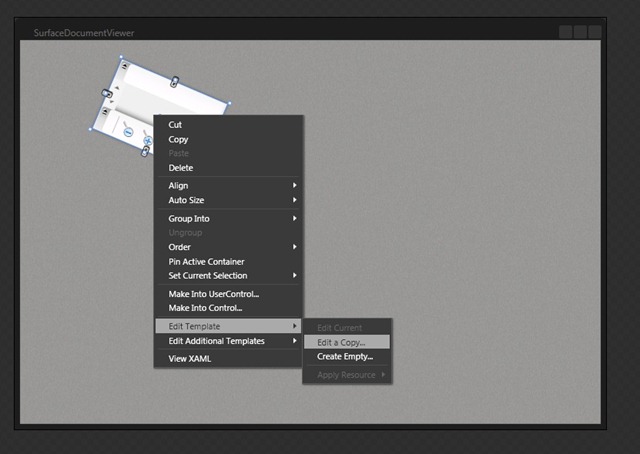
I then opened the project in Expression Blend so that I could get a copy of the “default” style/template for the DocumentViewer control. Opening the project in Blend, right click on the DocumentViewer, and select Edit Template | Edit a Copy…, as shown

2

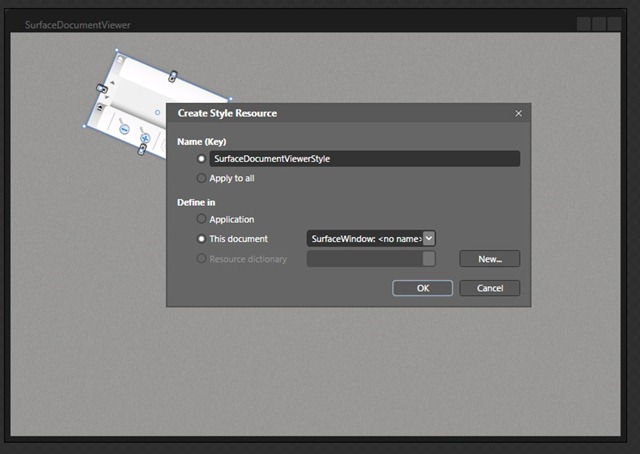
Name the style (I used SurfaceDocumentViewerStyle), and define a location for it (I left it in the SurfaceWindow1.xaml file), as shown below.

3

Click OK, then save your changes and close Expression Blend.

Returning to Visual Studio, you will get a message that the project has been changed outside of Visual Studio. Click Reload to load the changes into Visual Studio. Opening SurfaceWindow1.xaml in design view, you should now see a <Style> element under <s:SurfaceWindow.Resources>, and within that, a ControlTemplate for the DocumentViewer. There are several parts to the ControlTemplate:

  • A ContentControl for the toolbar, that loads from an external assembly.
  • A ScrollViewer named PART_ContentHost that is the container for the actual document display
  • A DockPanel that provides background for PART_ContentHost
  • Another ContentControl names PART_FindToolBarHost where the search box is hosted

The only part important to me was the ScrollViewer. I also wanted to get rig of the toolbar and the search box in order to keep things as clean as possible. So I deleted the other parts.

Here then is the key step to making the DocumentViewer touch aware: I replaced the ScrollViewer with s:SurfaceScrollViewer. My new ControlTemplate now looks as shown below:

<Style x:Key="SurfaceDocumentViewerStyle" BasedOn="{x:Null}" TargetType="{x:Type DocumentViewer}">
    <Setter Property="Foreground" Value="{DynamicResource {x:Static SystemColors.WindowTextBrushKey}}"/>
    <Setter Property="Background" Value="{DynamicResource {x:Static SystemColors.ControlBrushKey}}"/>
    <Setter Property="FocusVisualStyle" Value="{x:Null}"/>
    <Setter Property="ContextMenu" Value="{DynamicResource {ComponentResourceKey ResourceId=PUIDocumentViewerContextMenu, TypeInTargetAssembly={x:Type System_Windows_Documents:PresentationUIStyleResources}}}"/>
    <Setter Property="Template">
        <Setter.Value>
            <ControlTemplate TargetType="{x:Type DocumentViewer}">
                <Border Focusable="False" BorderBrush="{TemplateBinding BorderBrush}" BorderThickness="{TemplateBinding BorderThickness}" CornerRadius="5" >
                    <Grid Background="{TemplateBinding Background}" KeyboardNavigation.TabNavigation="Local">
                        <Grid.ColumnDefinitions>
                            <ColumnDefinition Width="*"/>
                        </Grid.ColumnDefinitions>
                        <Grid.RowDefinitions>
                            <RowDefinition Height="Auto"/>
                            <RowDefinition Height="*"/>
                            <RowDefinition Height="Auto"/>
                        </Grid.RowDefinitions>
                        <s:SurfaceScrollViewer HorizontalScrollBarVisibility="Hidden" VerticalScrollBarVisibility="Auto" x:Name="PART_ContentHost" IsTabStop="true" TabIndex="1" Focusable="{TemplateBinding Focusable}" Grid.Column="0" Grid.Row="1" CanContentScroll="true" />
                    </Grid>
                </Border>
            </ControlTemplate>
        </Setter.Value>
    </Setter>
</Style>

Now, to test this, add an XPS document to your project (mine is name test.xps). Add an assembly reference to ReachFramework (XPS package support), and add using statements to SurfaceWindow1.xaml.cs as shown:


using System.IO;
using System.Windows.Xps.Packaging;

Add the following code to the end of the SurfaceWindow1 constructor to load and display the XPS document:


XpsDocument doc = new XpsDocument("test.xps", FileAccess.Read);
docViewer.Document = doc.GetFixedDocumentSequence();
docViewer.FitToWidth();
doc.Close();

Finally, to make the XPS document resize when you resize the ScatterViewItem, Add an event handler to your DocumentViewer to handle the SizeChanged event, as shown below:


private void docViewer_SizeChanged(object sender, SizeChangedEventArgs e)
{
    docViewer.FitToWidth();
}

If everything went according to plan, you should now be able to run your code and you should get a ScatterViewItem displaying your XPS file which is resizable, and which supports touch to navigate around the document.

(I think this should also work with the Surface Toolkit for Windows Touch, but I haven’t tried it yet)

Watching R-rated movies, early alcohol use linked – Paging Dr. Gupta – CNN.com Blogs

Watching R-rated movies, early alcohol use linked – Paging Dr. Gupta – CNN.com Blogs

This kind of crap science just annoys the hell out of me – what they have identified is a correlation. This says absolutely nothing about any kind of causal relationship between R-rated movies  and early alcohol use.

The article quotes one researcher as saying "No one is suggesting that R-rated movies alone are the cause of early onset drinking but it’s certainly a factor". I would like to know what proof implies that “it’s certainly a factor”.

Again, statistical correlation does not imply a causal relationship!

SharePoint 2010 Workflow Example – Custom Association and Initiation Forms

A year of so ago I wrote a couple of posts on MOSS 2007 workflows, specifically around the creation of custom Association and Initiation forms using InfoPath. While neither of these tasks are really very difficult (once you have figured out how), I think most would agree that the whole process is a great deal more messy that it should be.

Now that we are near the release of SharePoint 2010 (it went RTM last week and ships May 12, for those who have not seen the 2 million other posts letting you know), I thought I would revisit these same activities in SharePoint 2010 to demonstrate the fact that the process is whole lot less messy.

(Note that I have not had time to do screen captures as I did in my previous examples. If you have trouble following what I have done, leave a comment and I will add the pictures in).

The first couple of steps are identical to the previous version:

1) Create a new site.

2) Create a new document library (make sure you add at least one document to the library for testing later).

Now things get a little different.

3) Run SharePoint Designer 2010, and open your site.

4) In the Site Objects list on the left hand side, select Workflows. You will see the list of workflows defined on the site, which at this point will just be built in workflows. You can edit these workflows (though I wouldn’t) or you can create a copy of one of them to serve as a starting point. In this example, however, we will start from scratch.

5) In the Ribbon you will see three choices for creating a new workflow:

  • A List Workflow: Creates a workflow associated with a specific list. These workflows can only be associated to one list, and cannot be re-used
  • A Reusable Workflow: Creates a workflow which is not pre-associated with a particular list. These workflows can be later associated with one or more lists or content types. They can also be exported as WSP packages and reused across multiple sites.
  • Site Workflows: Site workflows are not associated with a list or content type. They are initiated from the Site Actions menu, and their instances are not connected to list items.

In this example, we will create a Reusable Workflow. Give your workflow a name, a description if you want, and leave the Content Type selection at “All”, and click Ok.

6) You will now see the workflow editor in SharePoint Designer. The main canvas is where you design the logic of your workflow. Make sure your insertion point is in Step 1, and from the Action gallery of the Insert section of the Ribbon, select “Log to History List”. Click on “this message” in the design area, and enter text to be logged. I used “My Workflow Started”.

7) Now for the point of this example – we will create an Association and Initiation parameter. In the Ribbon, click on Initiation Form Parameters.

Click Add…, and define a new parameter. Mine is called “MyParameter”, is of type “Single Line of Text”, and will be shown on both the Association and Initiation forms (you can also have a parameter which is only shown on Association, or only shown on Initiation). Once you have defined your parameter, click Ok.

8 ) Now you can add a reference to your parameter to you “Log to History List” activity. Open the message to be logged, and click the ellipses (…) to display the string builder tool. Click Add or Change Lookup, and select “Workflow Variables and Parameters” as the Data Source. Then select your parameter in the “Field from Source” drop down, and select String as the “Return Field As” selection. Click Ok, and then Ok again.

9) Now we should be ready to test things. In the Ribbon, click Publish. This will make the workflow available in your site.

10) Navigate to your site in the browser, and open the document library you created for this example. At the top of the page, under Library Tools, select Library. On the far right side of the Ribbon, select the Workflow Settings drop down, and select Add a Workflow. Select your custom workflow from the list, give your workflow association a name, and leave all the other settings at the default values. Click Ok.

11) A custom association form will now be displayed, asking for your parameter. Enter a default value for the parameter (I used “Default Value”). Click Save.

12) Now return to your document library, and select one of your documents. From the menu for the document, select Workflows. On the Workflows page that is displayed, select your workflow. A custom initiation form is now displayed, asking for the parameter you defined. Enter a value and click Start.

13) You will now be taken back to your document library. Notice that the document you used for the test now has a column named for your workflow, and has a value there of Completed. Click on Completed to view the workflow status page. You should now see the status for this workflow instance, and at the bottom you should see your logged message, with the value you entered for the parameter in your Initiation form.

While this procedure has almost as many steps as the previous examples for MOSS 2007, it is obviously a lot less messy to create and access Association and Initiation parameters in SharePoint 2010. From here, you can go back to SharePoint Designer, from which you can see the actual form (.XSN) used for your workflow, and you can open it up and customize it in InfoPath.

Ben Roethlisberger deserves at least two-game suspension – Peter King – SI.com

Ben Roethlisberger deserves at least two-game suspension – Peter King – SI.com

More of the same crap I complained about with respect to Michael Vick, only worse in this case because Ben not only was not convicted of anything, he was not even charged with anything. Without getting into whether Ben is acting like an idiot, lets think about it this way…

Say you were accused of a crime. The police investigated, and let you go on your way. After further investigation, prosecutors decided that there was not enough evidence to charge you with any crime. Would you feel your employer would be justified in suspending you without pay for two weeks? Or would you be on your way to a lawyer if your employer tried this?

Everyone keeps saying that star athletes need to stop feeling that they deserve special treatment when they act out. Well, I agree – they should not be treated differently, either in terms of leniency or punishment.

RIP to my favourite computer

Well, it has finally happened. My favourite computer (the best I have ever used, actually) has finally died. As I have noted before, for many years now my Motion Computing LE1600 slate has been the centre of my computing toolkit. About the only thing I do not use it for is programming – pretty much everything else I do (or did) on my tablet.

Sadly, after 5 years, the batteries have all died. While I will try to get new batteries, I am not hopeful that I can get them at a reasonable cost.

What is really disappointing to me is that there is nothing out there which which to replace it. Motion Computing has discontinued the LE1600/LE1700, and the only similar product is the J3400 which is overkill for my needs. The offerings from Fujitsu and others in the slate space are all several years old, and far over priced for what they now offer.

And then there are the many new and pending products in the slate space – the iPad, as well as offerings from HP and many others. As slick as some of these new devices look, and as attractive as the pricing is on them, it appears that my worst fears have been realized and most of the new generation of slates are dumbed-down consumer devices, with no real support for ink input which is, as I have said before, crucial to my use of the platform.

Ah well – time to search for batteries. 

Some challenges with MS Surface Development

So I have been playing with the MS Surface for a couple of weeks, and have a pretty good handle on the basics of the development model. As I said previsouly, the nice thing (for me, anyway) is that it is pretty standard .NET stuff. You can do pretty much anything you need to using Windows Presentation Foundation (WPF). That being said, it is not without its challenges, and I would like to share some of what I have seen so far. 

1) The SDK only installs on 32-bit Windows Vista. This is a challenge for me, since my T4G laptop is running XP, and all of my other computers are running 64-bit Windows 7. The big value of the SDK is that it contains a “Surface Simulator” which allows you to experiment with Surface development without actually having a Surface. I tried setting up a 32-bit Vista VM to use for the SDK, but the simulator does not work in the VM. Now the good news, after a couple of weeks of messing around, I managed to hack the .msi file for the SDK, which then allowed me to install on 64-bit Win7. All seems to work great now.  

2) WPF experience is hard to come by. I can program in WPF, and understand how it works, but when it comes to the fancy styling and more creative aspects of what you can do with XAML, I am definitely no expert. Apparently, neither is anyone else I know!

3) Changing the way you think about the user interface. This is the biggy. The UI model for the Surface is different than anything else with which I have worked. yes, it is a multi-touch platform, which is cool, but hardly unique. If all you want to do is develope multi-touch apps, you can do it much more cheaply on a multi-touch PC (both WPF and Silverlight now support multi-touch development on Windows 7). The unique aspects of the Surface are that it is social, immersive, 360-degree, and supports interaction with physical objects. In order to make full use of the Surface platform, you have to think about all of these things. You also have to break old habits regarding how the user interacts with the platform. We are used to menus, text boxes, check boxes, drop downs and all the usual UI components we have lived with for so long in desktop applications. Or the content and navigation models we are used to on the web. The Surface requires us to forget all of that, and think of interaction in a new way. In this sense, it is more like iPhone development. However, even iPhone development gives you a fairly strict environment which defines how your app ahould look. The Surface on the other hand, is wide open. You can create almost any interaction model you can imagine, supporting multiple user working either independantly or collaboratively, working from any or all sides of the screen, with or without physical objects. This requires a whole new way of thinking, at least for me.

4) Ideas. This is another big challenge. I have lots of ideas for applications for the Surface. Some of them I am pretty sure are good. Some of those are even useful. Some of my other ideas are probably downright stupid. I would like to hear your ideas. I have always believed that, the more people you have coming up with ideas, and the more ideas you come up with, the better your chances of finding great ideas. So shoot me email with any or all ideas you might have – and don’t worry, they cannot be any more silly than some of mine!

Finally, I have added a little video showing just how far you can go with the Surface UI. Hopefully in the next couple of days, I will have a video of some of what I am working on to show.

DaVinci (Microsoft Surface Physics Illustrator) from Razorfish – Emerging Experiences on Vimeo.